A definitive guide to handling errors in JavaScript
Murphy's law states that whatever can go wrong will eventually go wrong. This applies a tad too well in the world of programming. If you create an application, chances are you'll create bugs and other issues. Errors in JavaScript are one such common issue!
A software product's success depends on how well its creators can resolve these issues before hurting their users. And JavaScript, out of all programming languages, is notorious for its average error handling design.
If you're building a JavaScript application, there's a high chance you'll mess up with data types at one point or another. If not that, then you might end up replacing an undefined with a null or a triple equals operator (===) with a double equals operator (==).
It's only human to make mistakes. This is why we will show you everything you need to know about handling errors in JavaScript.
This article will guide you through the basic errors in JavaScript and explain the various errors you might encounter. You'll then learn how to identify and fix these errors. There are also a couple of tips to handle errors effectively in production environments.
Without further ado, let's begin!
What are JavaScript errors?
Errors in programming refer to situations that don't let a program function normally. It can happen when a program doesn't know how to handle the job at hand, such as when trying to open a non-existent file or reaching out to a web-based API endpoint while there's no network connectivity.
These situations push the program to throw errors to the user, stating that it doesn't know how to proceed. The program collects as much information as possible about the error and then reports that it cannot move ahead.
Intelligent programmers try to predict and cover these scenarios so that the user doesn't have to figure out a technical error message like "404" independently. Instead, they show a much more understandable message: "The page could not be found."
Errors in JavaScript are objects shown whenever a programming error occurs. These objects contain ample information about the type of the error, the statement that caused the error, and the stack trace when the error occurred. JavaScript also allows programmers to create custom errors to provide extra information when debugging issues.
Properties of an error
Now that the definition of a JavaScript error is clear, it's time to dive into the details.
Errors in JavaScript carry certain standard and custom properties that help understand the cause and effects of the error. By default, errors in JavaScript contain three properties:
- message: A string value that carries the error message
- name: The type of error that occurred (We'll dive deep into this in the next section)
- stack: The stack trace of the code executed when the error occurred
Errors can also carry a cause property, which is standard since ES2022. You set it when you create an error to record the error that caused it, for example, new Error("Could not save user", { cause: err }).
Some engines add properties like columnNumber, lineNumber, and fileName (Firefox does) to describe the error better. However, these properties are not standard and may or may not be present in every error object generated from your JavaScript application.
Understanding stack trace
A stack trace is the list of method calls a program was in when an event such as an exception or a warning occurs. This is what a sample stack trace accompanied by an exception looks like:
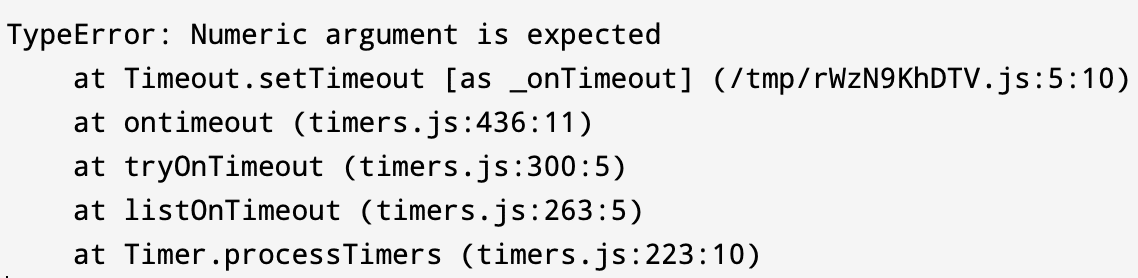
As you can see, it starts by printing the error name and message, followed by a list of methods that were being called. Each method call states the location of its source code and the line at which it was invoked. You can use this data to navigate through your codebase and identify which piece of code is causing the error.
This list of methods is arranged in a stacked fashion. It shows where your exception was first thrown and how it propagated through the stacked method calls. Implementing a catch for the exception will not let it propagate up through the stack and crash your program. However, you might want to leave fatal errors uncaught to crash the program in some scenarios intentionally.
Errors vs exceptions
Most people usually consider errors and exceptions as the same thing. However, it's essential to note a slight yet fundamental difference between them.
An exception is an error object that has been thrown.
To understand this better, let's take a quick example. Here is how you can define an error in JavaScript:
const wrongTypeError = new TypeError("Wrong type found, expected character")And this is how the wrongTypeError object becomes an exception:
throw wrongTypeErrorHowever, most people tend to use the shorthand form which defines error objects while throwing them:
throw new TypeError("Wrong type found, expected character")This is standard practice. However, it's one of the reasons why developers tend to mix up exceptions and errors. Therefore, knowing the fundamentals is vital even though you use shorthands to get your work done quickly.
Types of errors in JavaScript
There's a range of predefined error types in JavaScript. The JavaScript engine throws them automatically when something goes wrong, and you can also throw them yourself.
This section will walk you through some of the most common types of errors in JavaScript and understand when and why they occur.
RangeError
A RangeError is thrown when a variable is set with a value outside its legal values range. It usually occurs when passing a value as an argument to a function, and the given value doesn't lie in the range of the function's parameters. It can sometimes get tricky to fix when using poorly documented third-party libraries since you need to know the range of possible values for the arguments to pass in the correct value.
Some of the common scenarios in which RangeError occurs are:
- Trying to create an array of illegal lengths via the Array constructor.
- Passing bad values to numeric methods like
toExponential(),toPrecision(),toFixed(), etc. - Passing illegal values to string functions like
normalize().
ReferenceError
A ReferenceError occurs when something is wrong with a variable's reference in your code. You might have forgotten to declare the variable before using it, or you might be trying to use an inaccessible variable in your code. In any case, going through the stack trace provides ample information to find and fix the variable reference that is at fault.
Some of the common reasons why ReferenceErrors occur are:
- Making a typo in a variable name.
- Trying to access block-scoped variables outside of their scopes.
- Referencing a global variable from an external library (like $ from jQuery) before it's loaded.
SyntaxError
These errors are one of the simplest to fix since they indicate an error in the syntax of the code. JavaScript is a scripting language, so there's no separate compile step to catch these errors for you. Instead, the engine throws a SyntaxError when it parses the script, and none of the code in that script runs. In compiled languages, such errors are identified during compilation, and the app binaries are not created until they are fixed.
Some of the common reasons why SyntaxErrors might occur are:
- Missing quotation marks
- Missing closing parentheses
- Improper alignment of curly braces or other characters
It's a good practice to use a linting tool in your IDE to identify such errors for you before they hit the browser.
TypeError
TypeError is one of the most common errors in JavaScript apps. This error is created when some value doesn't turn out to be of a particular expected type. Some of the common cases when it occurs are:
- Calling a value that isn't a function
- Attempting to access properties of
nullorundefined - Assigning a new value to a constant
There are a lot more possibilities where a TypeError can occur. We'll look at some common instances later and learn how to fix them.
InternalError
The InternalError type is used when an exception occurs in the JavaScript engine itself. It isn't part of the ECMAScript standard, and only Firefox throws it. Other engines report the same problems differently. For example, Chrome, Node.js, and Safari throw a RangeError: Maximum call stack size exceeded for too much recursion.
In Firefox, InternalError usually occurs in two scenarios:
- When a patch or an update to the JavaScript runtime carries a bug that throws exceptions (this happens very rarely)
- When your code contains entities that are too large for the JavaScript engine (e.g. too many switch cases, too large array initializers, too much recursion)
The most appropriate approach to solve this error is to identify the cause via the error message and restructure your app logic, if possible, to eliminate the sudden spike of workload on the JavaScript engine.
URIError
URIError occurs when a global URI handling function such as decodeURIComponent is used illegally. It usually indicates that the parameter passed to the method call did not conform to URI standards and thus could not be parsed by the method.
Diagnosing these errors is usually easy since you only need to examine the arguments for malformation.
EvalError
An EvalError occurs when an error occurs with an eval() function call. The eval() function is used to execute JavaScript code stored in strings. However, since using the eval() function is highly discouraged due to security issues and the current ECMAScript specifications don't throw the EvalError class anymore, this error type exists simply to maintain backward compatibility with legacy JavaScript code.
If you're working on an older version of JavaScript, you might encounter this error. In any case, it's best to investigate the code executed in the eval() function call for any exceptions.
AggregateError
An AggregateError wraps several errors in one, and its errors property holds them as an array. You'll most often see it when every promise passed to Promise.any() rejects:
try {
  await Promise.any([
    Promise.reject(new Error("Server A is down")),
    Promise.reject(new Error("Server B is down")),
  ])
} catch (e) {
  console.log(e.name) // AggregateError
  console.log(e.errors.map((err) => err.message)) // [ 'Server A is down', 'Server B is down' ]
}
Creating custom error types
While JavaScript offers an adequate list of error type classes to cover for most scenarios, you can always create a new error type if the list doesn't satisfy your requirements. The foundation of this flexibility lies in the fact that JavaScript allows you to throw anything literally with the throw command.
So, technically, these statements are entirely legal:
throw 8
throw "An error occurred"
However, throwing a primitive data type doesn't provide details about the error, such as its type, name, or the accompanying stack trace. To fix this and standardize the error handling process, the Error class has been provided. It's also discouraged to use primitive data types while throwing exceptions.
You can extend the Error class to create your custom error class. Here is a basic example of how you can do this:
class ValidationError extends Error {
  constructor(message) {
    super(message)
    this.name = "ValidationError"
  }
}
And you can use it in the following way:
throw new ValidationError("Property not found: name")Unlike the built-in error types, a class can't be called without the new keyword. If you leave it out, you'll get TypeError: Class constructor ValidationError cannot be invoked without 'new' instead of your error.
And you can then identify it using the instanceof keyword:
try {
  validateForm() // code that throws a ValidationError
} catch (e) {
  if (e instanceof ValidationError) {
    // do something
  } else {
    // do something else
  }
}
Top 10 most common errors in JavaScript
Now that you understand the common error types and how to create your custom ones, it's time to look at some of the most common errors you'll face when writing JavaScript code.
1. Uncaught RangeError
This error occurs under a few different scenarios. First, it can happen if you call a recursive function and it doesn't terminate. You can check this out yourself in the Chrome Developer Console:
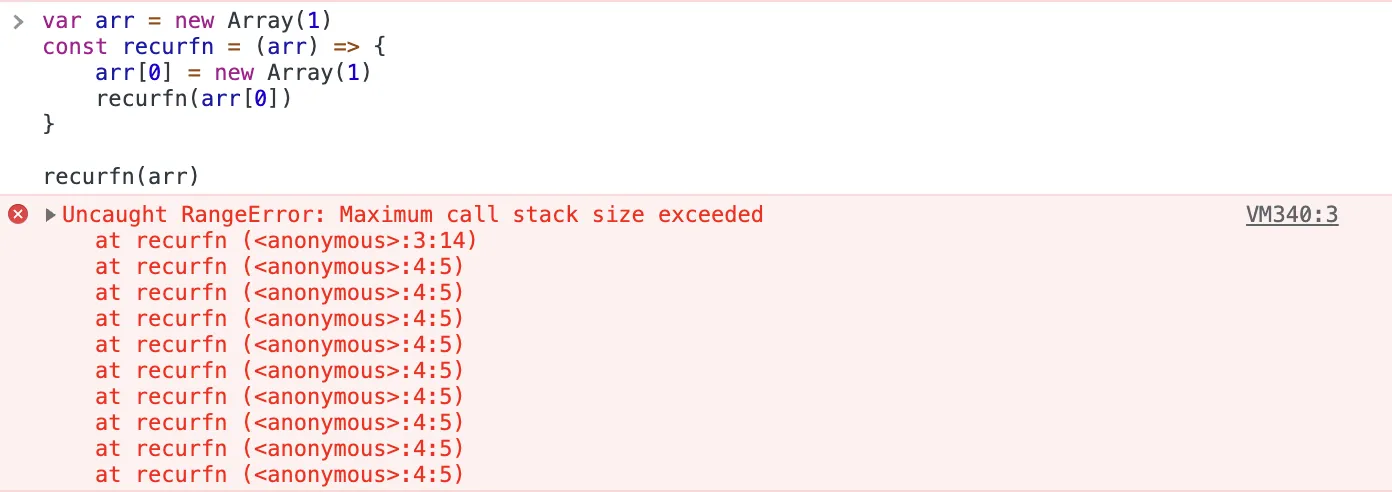
So to solve such an error, make sure to define the base cases of your recursive function correctly. Another reason why this error happens is if you have passed a value that is out of a function's parameter's range. Here's an example:

The error message will usually indicate what is wrong with your code. Once you make the changes, it will be resolved.

2. Uncaught TypeError: Cannot set properties of undefined
This error occurs when you set a property on an undefined reference. Older versions of Chrome reported it as Cannot set property 'count' of undefined. You can reproduce the issue with this code:
var list
list.count = 0
Here's the output that you'll receive:

To fix this error, initialize the reference with a value before accessing its properties. Here's how it looks when fixed:

3. Uncaught TypeError: Cannot read properties of undefined
This is one of the most frequently occurring errors in JavaScript. This error occurs when you attempt to read a property or call a function on an undefined object. You can reproduce it very easily by running the following code in a Chrome Developer console:
var func
func.call()
Here's the output:

An undefined object is one of the many possible causes of this error. Another prominent cause of this issue can be an improper initialization of the state while rendering the UI. Here's a real-world example from a React application:
import React, { useState, useEffect } from "react";

const CardsList = () => {

    const [state, setState] = useState();

    useEffect(() => {
        setTimeout(() => setState({ items: ["Card 1", "Card 2"] }), 2000);
    }, []);

    return (
        <ul>
            {state.items.map((item) => (
                <li key={item}>{item}</li>
            ))}
        </ul>
    );
};

export default CardsList;
The app starts with an empty state container and is provided with some items after a delay of 2 seconds. The delay is put in place to imitate a network call. Even if your network is super fast, you'll still face a minor delay due to which the component will render at least once. If you try to run this app, you'll receive the following error in Chrome:
TypeError: Cannot read properties of undefined (reading 'items')Safari reports the same problem as undefined is not an object (evaluating 'state.items').
This is because, at the time of rendering, the state container is undefined; thus, there exists no property items on it. Fixing this error is easy. You just need to provide an initial default value to the state container.
// ...
const [state, setState] = useState({items: []});
// ...
Now, after the set delay, your app will show a similar output:

The exact fix in your code might be different, but the essence here is to always initialize your variables properly before using them.
4. TypeError: undefined is not an object
This is how Safari reports the previous error: it occurs when you try to access the properties of or call a method on an undefined object. Safari adds the expression that failed, as in TypeError: undefined is not an object (evaluating 'func.call'). You can run the same code from above to reproduce the error yourself.

The solution to this error is also the same — make sure that you have initialized your variables correctly and they are not undefined when a property or method is accessed.
5. TypeError: null is not an object
This is, again, similar to the previous error. It occurs in Safari, and the only difference between the two errors is that this one is thrown when the object whose property or method is being accessed is null instead of undefined. You can reproduce this by running the following piece of code:
var func = null

func.call()
Here's the output that you'll receive:

JavaScript never sets a variable to null on its own, so the value comes either from your code or from an API that returns null, such as document.querySelector() when no element matches the selector. Chrome reports the same mistake as Cannot read properties of null. Check where the value is set, and make sure it isn't null before you use it.
6. TypeError: Cannot read property 'length'
This error occurs in Chrome when you try to read the length of a null or undefined object. The cause of this issue is similar to the previous issues, but it occurs quite frequently while handling lists; hence it deserves a special mention. Here's how you can reproduce the problem:
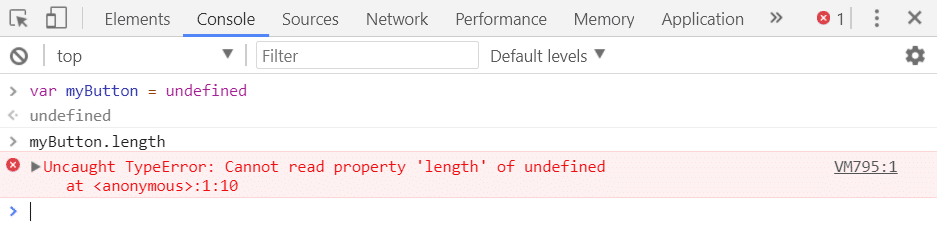
However, in the newer versions of Chrome, this error is reported as Uncaught TypeError: Cannot read properties of undefined. This is how it looks now:

The fix, again, is to ensure that the object whose length you're trying to access exists and is not set to null.
7. TypeError: x is not a function
This error occurs when you try to invoke a method that doesn't exist in your script, or it does but can't be referenced in the calling context. Chrome reports it with the name of what you tried to call, such as TypeError: this.showAlert is not a function, and older versions of Safari reported it as 'undefined' is not a function. You can solve it by checking the line of code throwing the error. If you find a typo, fix it and check if it solves your issue.
If you have used the self-referencing keyword this in your code, this error might arise if this is not appropriately bound to your context. Consider the following code:
const notifier = {
  message: "Saved!",
  showAlert() {
    alert(this.message)
  },
  init() {
    document.addEventListener("click", function () {
      this.showAlert()
    })
  },
}

notifier.init()
If you click the page, it will throw the error we discussed. It happens because the regular function passed as the event listener is executed in the context of the document, so this refers to the document instead of the notifier object, and the document has no showAlert() method.
To solve this, pass a function that keeps the right this. You can either use an arrow function, which takes this from the surrounding init() method, or bind the method with bind():
document.addEventListener("click", () => this.showAlert())

// or
document.addEventListener("click", this.showAlert.bind(this))
8. ReferenceError: event is not defined
This error occurs when you try to access a reference not defined in the calling scope. This usually happens when handling events since they often provide you with a reference called event in the callback function. This error can occur if you forget to define the event argument in your function's parameters or misspell it:
button.addEventListener("click", function () {
  event.preventDefault() // `event` isn't a parameter of this function
})
You might not see this error in a browser, because current browsers expose the current event as a deprecated global window.event, so the code above quietly uses it instead. The same code throws a ReferenceError anywhere that global doesn't exist, such as in Node.js. Either way, the fix is to accept the event as a parameter:
button.addEventListener("click", function (event) {
  event.preventDefault()
})
9. TypeError: Assignment to constant variable
This is an error that arises out of carelessness. If you try to assign a new value to a constant variable, you'll be met with such a result:

While it seems easy to fix right now, imagine hundreds of such variable declarations and one of them mistakenly defined as const instead of let! Unlike other scripting languages like PHP, there's minimal difference between the style of declaring constants and variables in JavaScript. Therefore it's advisable to check your declarations first of all when you face this error. You could also run into this error if you forget that the said reference is a constant and use it as a variable. This indicates either carelessness or a flaw in your app's logic. Make sure to check this when trying to fix this issue.
10. (unknown): Script error
A Script error. message appears when a script loaded from a different origin, such as a third-party library on a CDN, throws an error. This error is followed by (unknown) because the third-party script belongs to a different domain than your app. The browser hides other details to prevent leaking sensitive information from the third-party script.
You cannot resolve this error without knowing the complete details. Here's what you can do to get more information about the error:
- Add the
crossoriginattribute in the script tag. - Set the correct
Access-Control-Allow-Originheader on the server hosting the script. - If you don't have access to the server hosting the script, you can consider using a proxy to relay your request to the server and back to the client with the correct headers.
Once you can access the details of the error, you can then set out to fix the issue, which will probably be with either the third-party library or the network.
How to identify and prevent errors in JavaScript
While the errors discussed above are the most common ones you'll come across in JavaScript, relying on a few examples can never be enough. It's vital to understand how to detect and prevent any type of error in a JavaScript application while developing it. Here is how you can handle errors in JavaScript.
Manually throw and catch errors
The most fundamental way of handling errors that have been thrown either manually or by the runtime is to catch them. Like most other languages, JavaScript offers a set of keywords to handle errors. It's essential to know each of them in-depth before you set out to handle errors in your JavaScript app.
throw
The first and most basic keyword of the set is throw. As evident, the throw keyword is used to throw errors to create exceptions in the JavaScript runtime manually. We have already discussed this earlier in the piece, and here's the gist of this keyword's significance:
- You can
throwanything, including numbers, strings, andErrorobjects. - However, it's not advisable to throw primitive data types such as strings and numbers since they don't carry debug information about the errors.
- Example:
throw new TypeError("Please provide a string")
try
The try keyword is used to indicate that a block of code might throw an exception. Its syntax is:
try {
    // error-prone code here
}
It's important to note that a try block must be followed by a catch block, a finally block, or both.
catch
The catch keyword is used to create a catch block. This block of code is responsible for handling the errors that the trailing try block catches. Here is its syntax:
catch (exception) {
    // code to handle the exception here
}
And this is how you implement the try and the catch blocks together:
try {
    // business logic code
} catch (exception) {
    // error handling code
}
Unlike C++ or Java, you cannot append multiple catch blocks to a try block in JavaScript. This means that you cannot do this:
try {
    // business logic code
} catch (exception) {
    if (exception instanceof TypeError) {
        // do something
    }
} catch (exception) {
    if (exception instanceof RangeError) {
    // do something
    }
}
Instead, you can use an if...else statement or a switch case statement inside the single catch block to handle all possible error cases. It would look like this:
try {
    // business logic code
} catch (exception) {
    if (exception instanceof TypeError) {
        // do something
    } else if (exception instanceof RangeError) {
        // do something else
    }
}
finally
The finally keyword is used to define a code block that runs after the try and catch blocks, whether or not an error was thrown.
Also, the finally block will be executed regardless of the result of the other two blocks. This means that even if the catch block cannot handle the error entirely or an error is thrown in the catch block, the interpreter will execute the code in the finally block before the program crashes.
To be considered valid, the try block in JavaScript needs to be followed by either a catch or a finally block. Without any of those, the interpreter will raise a SyntaxError.
Handle errors globally with onerror
The onerror event handler is available on HTML elements that load resources, such as images and scripts. For instance, if an img tag cannot find the image whose URL is specified, it fires its onerror handler to let you handle the error.
Typically, you would provide another image URL in the onerror handler for the img tag to fall back to. This is how you can do that via JavaScript:
const image = document.querySelector("img")

image.onerror = () => {
  image.onerror = null // avoid a loop if the fallback image is missing too
  image.src = "/images/fallback.png"
}
You can also use this feature on the window to create a global error handling mechanism for your app. window.onerror runs for every uncaught error and receives the message, the script URL, the line and column numbers, and the error object:
window.onerror = (message, source, lineno, colno, error) => {
  console.log(`Error occurred: ${message} at ${source}:${lineno}:${colno}`)
}
With this event handler, you can centralize the logging of uncaught errors, similar to event handling. window.onerror holds only one handler, so if you want several, for example, one that logs errors and one that shows a message to the user, attach them with window.addEventListener("error", handler). Every listener runs for each error.
Keep in mind that this handler only sees errors nobody caught, so it doesn't replace try...catch where you can recover from an error. It also doesn't catch rejected promises. For those, listen to the unhandledrejection event.
Pass errors via callbacks
While simple and linear functions allow error handling to remain simple, callbacks can complicate the affair.
Consider the following piece of code:
const calculateCube = (number, callback) => {
    setTimeout(() => {
        const cube = number * number * number
        callback(cube)
    }, 1000)
}

const callback = result => console.log(result)

calculateCube(4, callback)
The above function demonstrates an asynchronous condition in which a function takes some time to process operations and returns the result later with the help of a callback.
If you try to enter a string instead of 4 in the function call, you'll get NaN as a result.
This needs to be handled properly. Here's how:
const calculateCube = (number, callback) => {

    setTimeout(() => {
        if (typeof number !== "number")
            throw new Error("Numeric argument is expected")

        const cube = number * number * number
        callback(cube)
    }, 1000)
}

const callback = result => console.log(result)

try {
    calculateCube(4, callback)
} catch (e) { console.log(e) }
This should solve the problem ideally. However, if you try passing a string to the function call, you'll receive this:

Even though you have implemented a try-catch block while calling the function, it still says the error is uncaught. The error is thrown after the catch block has been executed due to the timeout delay.
This can occur quickly in network calls, where unexpected delays creep in. You need to cover such cases while developing your app.
Here's how you can handle errors properly in callbacks:
const calculateCube = (number, callback) => {

    setTimeout(() => {
        if (typeof number !== "number") {
            callback(new TypeError("Numeric argument is expected"))
            return
        }
        const cube = number * number * number
        callback(null, cube)
    }, 2000)
}

const callback = (error, result) => {
    if (error !== null) {
        console.log(error)
        return
    }
    console.log(result)
}

calculateCube('hey', callback)
Now, the output at the console will be:

This indicates that the error has been appropriately handled. You no longer need a try...catch block around the call, because the error reaches your code through the callback's first argument.
Handle errors in promises
Most people tend to prefer promises for handling asynchronous activities. However, you still need to handle errors in promises. In browsers, an unhandled rejection only logs an error to the console, but since Node.js 15, it crashes the process by default. To understand this better, let's rewrite the calculateCube() function using Promises:
const delay = ms => new Promise(res => setTimeout(res, ms));

const calculateCube = async (number) => {
    if (typeof number !== "number")
        throw new Error("Numeric argument is expected")
    await delay(5000)
    const cube = number * number * number
    return cube
}

try {
    calculateCube(4).then(r => console.log(r))
} catch (e) { console.log(e) }
The timeout from the previous code has been isolated into the delay function for understanding. If you try to enter a string instead of 4, the output that you get will be similar to this:

This is because an async function never throws synchronously. It returns a rejected promise instead, and the try...catch block has already finished by the time the promise rejects. The solution to this issue is simple. Simply add a catch() call to the promise chain like this:
calculateCube("hey")
.then(r => console.log(r))
.catch(e => console.log(e))
Now the output will be:

You can observe how easy it is to handle errors with promises. Additionally, you can chain a finally() call to the promise to add code that will run after error handling has been completed.
Alternatively, you can also handle errors in promises using the traditional try-catch-finally technique. Here's how your promise call would look like in that case:
try {
    let result = await calculateCube("hey")
    console.log(result)
} catch (e) {
    console.log(e)
} finally {
    console.log("Finally executed")
}
However, await only works inside async functions and at the top level of ES modules. Both approaches handle errors equally well, so pick the one that fits your code.
throw/catch vs onerror vs callbacks vs promises: which is the best?
With four methods at your disposal, you must know how to choose the most appropriate in any given use case. Here's how you can decide for yourselves:
throw/catch
You will be using this method most of the time. Make sure to implement conditions for all possible errors inside your catch block, and remember to include a finally block if you need to run clean-up code, such as closing a file or a database connection, after the try block.
However, too many try/catch blocks can make your code difficult to maintain. If you find yourself in such a situation, you might want to handle errors via the global handler or the promise method.
When deciding between asynchronous try/catch blocks and promise's catch(), it's advisable to go with the async try/catch blocks since they will make your code linear and easy to debug.
onerror
It's best to use the global error handler as a safety net for errors that can occur anywhere in your codebase and that you don't catch yourself, for example, to log them or report them to a monitoring service. It enables you to handle errors as if they were just another event handled by your application. You can define multiple error handlers and attach them to your app's window with addEventListener() on the initial rendering.
However, it only tells you that an error happened, so it can't replace the traditional throw/catch method where you need to recover from an error.
Callbacks and promises
Error handling in callbacks and promises differs due to their code design and structure. However, if you choose between these two before you have written your code, it would be best to go with promises.
This is because promises have a built-in construct for chaining a catch() and a finally() block to handle errors easily. This method is easier and cleaner than defining additional arguments/reusing existing arguments to handle errors.
Keep track of changes with Git repositories
Many errors often arise due to manual mistakes in the codebase. While developing or debugging your code, you might end up making unnecessary changes that may cause new errors to appear in your codebase. Automated testing is a great way to keep your code in check after every change. However, it can only tell you if something's wrong. If you don't take frequent backups of your code, you'll end up wasting time trying to fix a function or a script that was working just fine before.
This is where Git plays its role. With a proper commit strategy, you can use your Git history as a backup system to view your code as it evolved through the development. You can easily browse through your older commits and find out the version of the function working fine before but throwing errors after an unrelated change.
You can then restore the old code or compare the two versions to determine what went wrong. Modern web development tools like GitHub Desktop or GitKraken help you to visualize these changes side by side and figure out the mistakes quickly.
A habit that can help you make fewer errors is running code reviews whenever you make a significant change to your code. If you're working in a team, you can create a pull request and have a team member review it thoroughly. This will help you use a second pair of eyes to spot out any errors that might have slipped by you.
Best practices for handling errors in JavaScript
The above-mentioned methods are adequate to help you design a robust error handling approach for your next JavaScript application. However, it would be best to keep a few things in mind while implementing them to get the best out of your error-proofing. Here are some tips to help you.
1. Use custom errors when handling operational exceptions
We introduced custom errors early in this guide to give you an idea of how to customize the error handling to your application's unique case. It's advisable to use custom errors wherever possible instead of the generic Error class as it provides more contextual information to the calling environment about the error.
On top of that, custom errors allow you to moderate how an error is displayed to the calling environment. This means that you can choose to hide specific details or display additional information about the error as and when you wish.
You can go so far as to format the error contents according to your needs. This gives you better control over how the error is interpreted and handled.
2. Do not swallow any exceptions
Even the most senior developers often make a rookie mistake — consuming exceptions levels deep down in their code.
You might come across situations where you have a piece of code that is optional to run. If it works, great; if it doesn't, you don't need to do anything about it.
In these cases, it's often tempting to put this code in a try block and attach an empty catch block to it. However, by doing this, you'll leave that piece of code open to causing any kind of error and getting away with it. This can become dangerous if you have a large codebase and many instances of such poor error management constructs.
The best way to handle exceptions is to determine a level on which all of them will be dealt and raise them until there. This level can be a controller (in an MVC architecture app) or a middleware (in a traditional server-oriented app).
This way, you'll get to know where you can find all the errors occurring in your app and choose how to resolve them, even if it means not doing anything about them.
3. Use a centralized strategy for logs and error alerts
Logging an error is often an integral part of handling it. Those who fail to develop a centralized strategy for logging errors may miss out on valuable information about their app's usage.
An app's event logs can help you figure out crucial data about errors and help to debug them quickly. If you have proper alerting mechanisms set up in your app, you can know when an error occurs in your app before it reaches a large section of your user base.
It's advisable to use a pre-built logger or create one to suit your needs. You can configure this logger to handle errors based on their levels (warning, debug, info, etc.), and some loggers even go so far as to send logs to remote logging servers immediately. This way, you can watch how your application's logic performs with active users.
4. Notify users about errors appropriately
Another good point to keep in mind while defining your error handling strategy is to keep the user in mind.
All errors that interfere with the normal functioning of your app must present a visible alert to the user to notify them that something went wrong so the user can try to work out a solution. If you know a quick fix for the error, such as retrying an operation or logging out and logging back in, make sure to mention it in the alert to help fix the user experience in real-time.
In the case of errors that don't cause any interference with the everyday user experience, you can consider suppressing the alert and logging the error to a remote server for resolving later.
5. Implement a middleware (Node.js)
Node.js frameworks like Express support middleware to add functionality to server applications. You can use this feature to create an error-handling middleware for your server.
The most significant benefit of using middleware is that all of your errors are handled centrally in one place. You can choose to enable/disable this setup for testing purposes easily.
Here's how you can create a basic middleware:
const logError = err => {
    console.log("ERROR: " + String(err))
}

const errorLoggerMiddleware = (err, req, res, next) => {
    logError(err)
    next(err)
}

const returnErrorMiddleware = (err, req, res, next) => {
    res.status(err.statusCode || 500).send(err.message)
}

module.exports = {
    logError,
    errorLoggerMiddleware,
    returnErrorMiddleware
}
You can then use this middleware in your Express app like this. Register it after all your routes, because Express only passes errors to middleware defined after the route that threw them:
const { errorLoggerMiddleware, returnErrorMiddleware } = require('./errorMiddleware')

// ...your routes

app.use(errorLoggerMiddleware)
app.use(returnErrorMiddleware)
Since Express 5, errors thrown in async route handlers, or rejected promises they return, are passed to your error-handling middleware automatically, so you don't need to wrap each handler in try...catch.
You can now define custom logic inside the middleware to handle errors appropriately. You don't need to worry about implementing individual error handling constructs throughout your codebase anymore.
6. Restart your app to handle programmer errors (Node.js)
Programmer errors are bugs in your code, like reading a property of undefined, or problems such as memory leaks that leave your app in a broken state. You can't recover from them reliably at runtime, because you don't know what state the app is in. The safest way to handle them is to let the process exit and have something restart it automatically, such as the Node.js cluster module, a process manager like PM2, or your hosting platform. This way, one bug doesn't leave your app down or serving broken responses.
7. Catch all uncaught exceptions (Node.js)
You can never be sure that you have covered every possible error that can occur in your app. Therefore, it's essential to implement a fallback strategy to catch all uncaught exceptions from your app.
Here's how you can do that:
process.on("uncaughtException", (error) => {
    console.error("UNCAUGHT EXCEPTION: " + String(error))
    // log the error, clean up, then exit so the app can be restarted
    process.exit(1)
})
The Node.js docs warn that it isn't safe to keep running after an uncaught exception, because the app may be in an unknown state. Use this handler to log the error and clean up, then exit and let your process manager restart the app.
8. Catch all unhandled promise rejections (Node.js)
Similar to how you can never cover for all possible exceptions, there's a high chance that you might miss out on handling all possible promise rejections.
Since Node.js 15, an unhandled promise rejection crashes your app by default, just like an uncaught exception. Therefore, it's crucial to implement a fallback mechanism that logs the rejection before the app exits.
Here's how you can do that:
process.on("unhandledRejection", (reason, promise) => {
    console.error("UNHANDLED REJECTION: " + String(reason))
    process.exit(1)
})
Summary
Like any other programming language, errors are quite frequent and natural in JavaScript. In some cases, you might even need to throw errors intentionally to indicate the correct response to your users. Hence, understanding their anatomy and types is very crucial.
Moreover, you need to be equipped with the right tools and techniques to identify and prevent errors from taking down your application.
In most cases, a solid strategy to handle errors with careful execution is enough for all types of JavaScript applications.
If you run your Node.js app on Sevalla's Application Hosting, you can check its runtime logs in the dashboard to track down errors in production.