How to set up TypeScript with Express
TypeScript is a strongly typed programming language that extends JavaScript capabilities. It offers a range of features to help you develop scalable applications with Node.js and Express.
One of the critical advantages of TypeScript over JavaScript is that it provides type classes, making it easier to write more predictable and maintainable code. Additionally, TypeScript offers type safety, ensuring your code is free from runtime errors and making detecting flaws early in development easier. The language also comes with refactoring tools and autocompletion, which improves developers' experience.
Moreover, Node.js and Express provide excellent performance for applications of any scale. Using classes in TypeScript also helps with organization and structure, further aiding in scalability. With these tools, you can build robust and scalable applications to handle growing demand.
This article demonstrates setting up an Express application using TypeScript with a single endpoint.
How to create an Express server
To follow this tutorial, ensure you have Node.js and npm installed on your computer. To set up an Express server:
-
Create a directory using the code below:
mkdir sample_app && cd sample_app -
Initialize a Node.js application in the directory by running this command:
npm init -yThe
-yflag in the command accepts the default prompts when creating a package.json file populated with the following code:{ "name": "sample_app", "version": "1.0.0", "description": "", "main": "index.js", "scripts": { "test": "echo \"Error: no test specified\" && exit 1" }, "keywords": [], "author": "", "license": "ISC" } -
Next, install
expressfor adding essential functionality anddotenvfor environment variable management in the directory you just created by running this command:npm i express dotenv -
Create a .env file in the root of the sample_app directory and populate it with the variable below.
PORT=3000 -
Create an express application that responds with a
Hello Worldtext when users visithttp://localhost:3000.const express = require("express"); const dotenv = require("dotenv"); // configures dotenv to work in your application dotenv.config(); const app = express(); const PORT = process.env.PORT; app.get("/", (request, response) => { response.status(200).send("Hello World"); }); app.listen(PORT, () => { console.log("Server running at PORT: ", PORT); }).on("error", (error) => { // gracefully handle error throw new Error(error.message); })dotenv.config()populates your Node application's process environment (process.env) with variables defined in a .env file. -
Start your Node.js application by running this command:
node index.jsCheck if the application works by visiting
http://localhost:3000on your browser. You should get a response similar to this.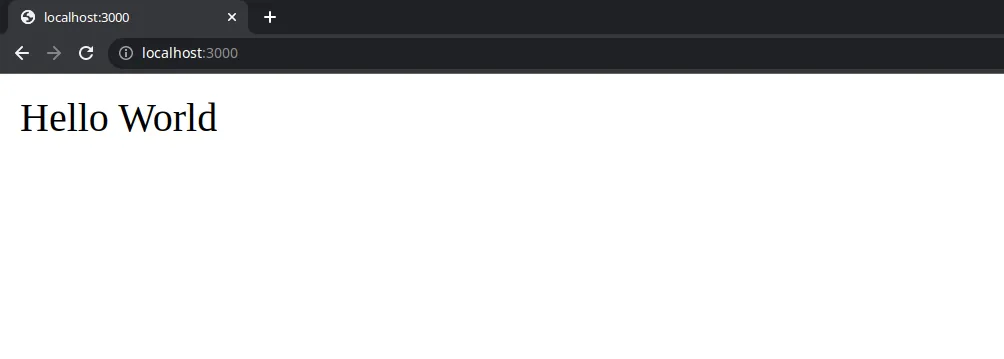
Hello World on http:localhost:3000.
Enable TypeScript in an Express application
Follow the steps below to use TypeScript in an Express application:
-
Install TypeScript by running this command:
npm i -D typescriptThe
-Doption enables npm to install packages as dev dependencies. You can use the packages you install with this option in the development phase. -
One of the strengths of the TypeScript community is the DefinitelyTyped GitHub repository. It stores documentation of type definitions for various npm packages. Users can quickly integrate npm packages into their projects without worrying about type-related difficulties by only installing the type definition for those packages with npm. DefinitelyTyped is an indispensable tool for TypeScript developers. It enables them to write cleaner and more efficient code and reduce the likelihood of errors. Install the type definitions for
expressby running this command (dotenvships with its own types):npm install -D @types/express -
Create a tsconfig.json file in the root of your project with the following configuration:
{
  "compilerOptions": {
    "target": "es2022",
    "module": "nodenext",
    "moduleResolution": "nodenext",
    "esModuleInterop": true,
    "strict": true,
    "skipLibCheck": true,
    "outDir": "./dist"
  },
  "include": ["index.ts"]
}
The tsconfig.json file marks your project's root directory and tells the TypeScript compiler how to work.
esModuleInteroplets you useimportwith CommonJS packages like Express, andoutDirsets the folder for the compiled JavaScript.You can also generate this file with
npx tsc --init, but recent TypeScript versions generate stricter ES module defaults that this tutorial's setup doesn't use, so the explicit configuration above is the safer starting point.
How to create a TypeScript server
To create a TypeScript server, change the .js extension to .ts and update the code with these type definitions:
import express, { Request, Response } from "express";
import dotenv from "dotenv";

// configures dotenv to work in your application
dotenv.config();
const app = express();

const PORT = process.env.PORT;

app.get("/", (request: Request, response: Response) => {
  response.status(200).send("Hello World");
});

app.listen(PORT, () => {
  console.log("Server running at PORT: ", PORT);
}).on("error", (error) => {
  // gracefully handle error
  throw new Error(error.message);
});
To use the compiler package and compile the TypeScript file into JavaScript, run the command below in the root directory of your application.
npx tscThen start your application by running the command.
node dist/index.jsVisiting http://localhost:3000 on your browser should provide a "Hello World" response.
You can deploy your TypeScript server to Sevalla. Check the Sevalla documentation for a step-by-step guide.
Summary
This guide demonstrated how to develop and set up an Express application using TypeScript. TypeScript has extra capabilities that JavaScript does not — including type classes, type safety, refactoring tools, and auto-completion — to help you build scalable applications and catch errors during development.