How to install Express on Windows, macOS, and Linux
Welcome to this guide on how to install Express on Windows, macOS, and Linux. Express is a popular web framework for building server-side web applications, and its installation process is relatively simple across different operating systems.
In this article, we'll walk you through the steps to get Express up and running on your machine, regardless of your OS of choice. The only step that differs between operating systems is installing Node.js. Once Node.js is installed, the rest of the steps are the same everywhere.
What is Express?
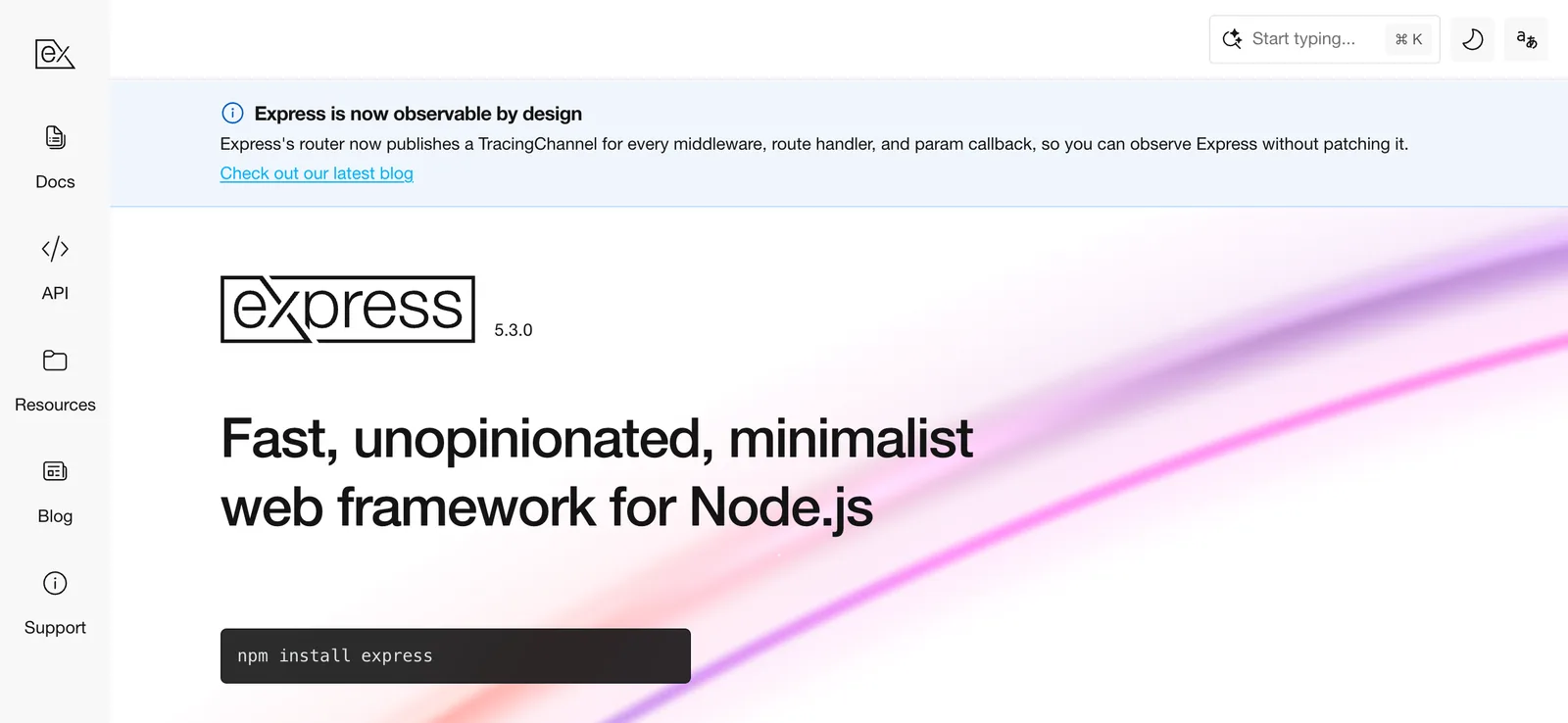
Express is a fast, unopinionated, minimalist web framework for Node.js. Its purpose is to simplify the process of creating web applications and APIs without unnecessary complexity. Express makes it easier to develop server-side applications by offering a simple and versatile approach for managing routing, middleware, and similar tasks. It's also the most downloaded Node.js web framework on npm.
Relationship with Node.js
Express is built on top of Node.js, a platform that allows developers to create server-side applications using JavaScript. Express extends Node.js' built-in HTTP module, providing additional features and functionality that make it easier to build and manage web applications.
Key features and functionality
Express offers a wide range of features and functionality that make it a popular choice among web developers:
- Routing and middleware support: Express makes it simple to define routes and handle incoming HTTP requests, as well as integrate middleware for tasks such as authentication, authorization, and data validation.
- Template engine integration: Express supports a variety of template engines, such as Pug and EJS, making it easy to create dynamic HTML pages on the server side.
- Simplified API for handling HTTP requests and responses: Express provides a high-level, easy-to-use API for working with HTTP requests and responses, streamlining the process of sending and receiving data from clients.
- Modular and extensible architecture: Express follows a modular design, allowing developers to easily extend its functionality with custom modules or third-party packages.
Advantages of using Express
Express offers numerous benefits to developers, making it a popular choice for web application development.
Simplified development process
Express streamlines the process of building server-side applications by providing a straightforward API and sensible defaults. This allows developers to focus on writing application logic rather than dealing with low-level details.
Large community and support
Express has a large and active community of developers who contribute to the framework, provide support, and create third-party packages that extend its functionality. This makes it easier for newcomers to get started and for experienced developers to find solutions to common problems.
Middleware integration
Express offers excellent support for middleware, which are functions that can be used to modify or handle incoming HTTP requests and outgoing responses. Middleware allows developers to easily implement features such as authentication, authorization, and data validation, resulting in cleaner and more modular code.
Works with any database
Express doesn't include a database layer, so you can use it with any database that has a Node.js driver, including MySQL, MongoDB, and PostgreSQL. If you prefer working with an ORM (Object Relational Mapping) or ODM library instead of writing queries yourself, you can add one, such as Prisma, Sequelize, or Mongoose.
Lightweight
Express is designed to be lightweight. It gives you a small core and lets you add only the packages your app needs, which keeps your application simple to understand and deploy. If raw request throughput is your top priority, frameworks such as Fastify are built specifically for it, but Express is fast enough for most web applications and APIs.
Express prerequisites
Before diving into installing Express, it's essential to have a few prerequisites in place:
- Basic knowledge of JavaScript
- Familiarity with the command line/terminal
System requirements
To run Express, you'll need to ensure your system meets the following requirements:
- Supported operating systems: Windows, macOS, Linux
- Hardware requirements: Minimal (dependent on Node.js)
- Node.js: Express 5 requires Node.js 18 or later. We recommend installing the current LTS (long-term support) version of Node.js.
Versions
Express has two supported major versions:
- Express 5: The current version and the one npm installs by default. Use it for new projects.
- Express 4: The previous major version. Many existing projects still use it, and you can install it with
npm install express@4if a project or tutorial requires it.
Express 5 includes a few breaking changes compared with Express 4, so check the migration guide before you upgrade an existing app.
How to install Express
The process for installing Express has two parts:
- Install Node.js, which also installs npm, the Node.js package manager. This step depends on your operating system.
- Create a project and install Express with npm. These steps are the same on Windows, macOS, and Linux.
Step 1: Install Node.js
Visit the official Node.js download page. It detects your operating system and shows you the install options for it, with the LTS version selected by default:
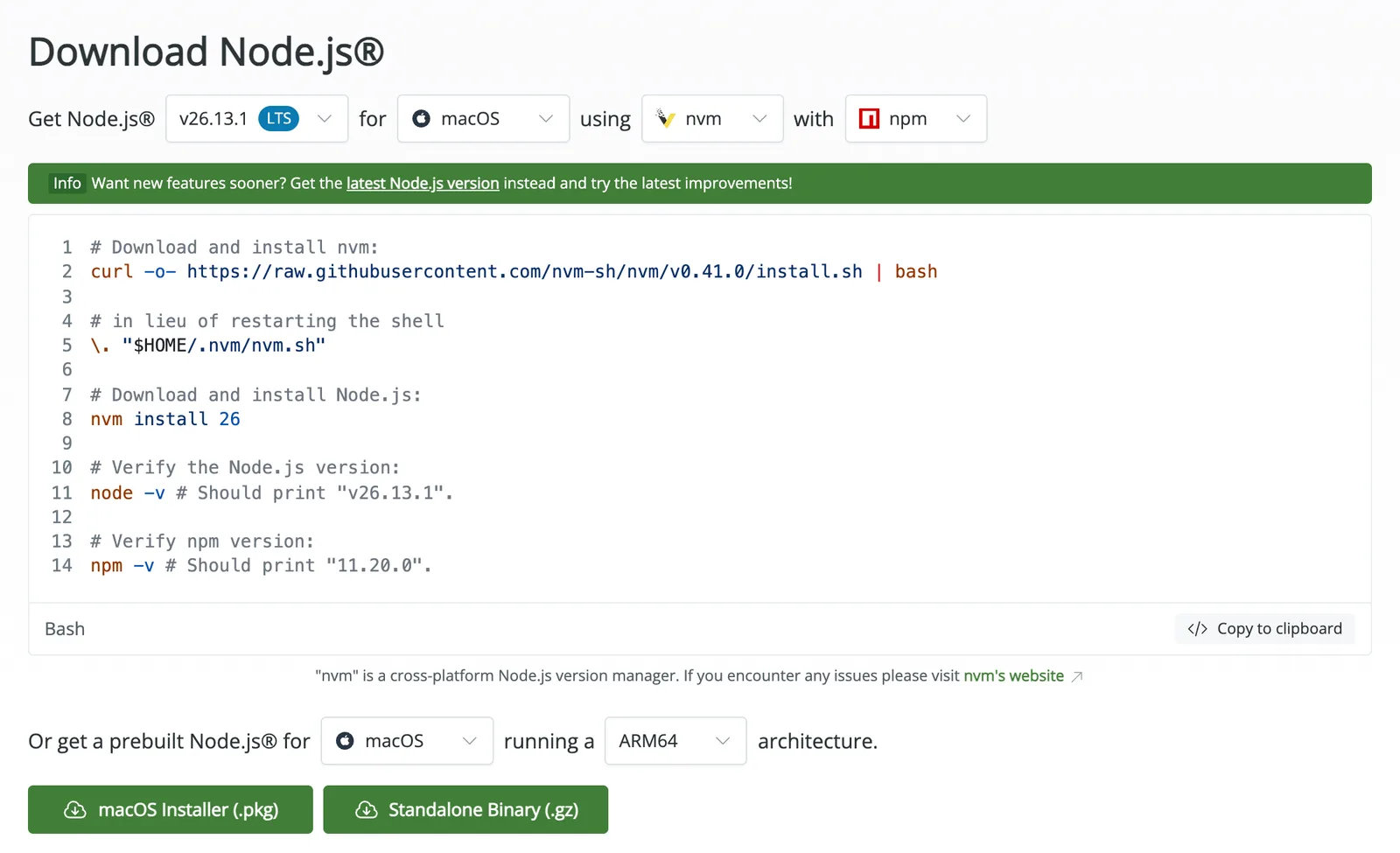
npm comes bundled with Node.js, so you don't need to install it separately.
How to install Node.js on Windows
Download the Windows Installer (.msi) from the Node.js download page, run it, and follow the prompts to complete the installation.
Alternatively, if you use the Windows Package Manager, you can install the LTS version from a terminal:
winget install OpenJS.NodeJS.LTSHow to install Node.js on macOS
Download the macOS Installer (.pkg) from the Node.js download page, run it, and follow the prompts to complete the installation.
If you use Homebrew, you can install Node.js with it instead. If you don't have Homebrew yet, install it with the following command:
/bin/bash -c "$(curl -fsSL https://raw.githubusercontent.com/Homebrew/install/HEAD/install.sh)"Then install Node.js:
brew install nodeYou can also use nvm, as shown in the Linux instructions below.
How to install Node.js on Linux
Most Linux distributions offer Node.js in their package repositories, but those versions are often several releases behind. The Node.js download page recommends installing it with nvm, a Node.js version manager that also lets you switch between Node.js versions later:
# Download and install nvm:
curl -o- https://raw.githubusercontent.com/nvm-sh/nvm/v0.41.0/install.sh | bash

# in lieu of restarting the shell
\. "$HOME/.nvm/nvm.sh"

# Download and install Node.js:
nvm install 26
Replace 26 with the LTS version shown on the Node.js download page.
Verify the installation
Once Node.js is installed, open a new terminal (Command Prompt or PowerShell on Windows) and check the versions of Node.js and npm:
node -v
npm -v
You should see a version number for each, such as v26.13.1 and 11.20.0. If you get a "command not found" error, close and reopen your terminal so it picks up the new installation.
Step 2: Create a project
Create a new folder for your app and move into it:
mkdir my-express-app
cd my-express-app
Then create a package.json file, which stores your project's configuration and dependencies:
npm init -yThe -y flag accepts all the default options. If you'd rather answer each prompt, run npm init without it. By default, the entry point of your app is index.js.
Step 3: Install Express
Now install Express in your project:
npm install expressThis command downloads Express into the node_modules folder of your project and adds it to the dependencies in your package.json:
"dependencies": {
  "express": "^5.3.0"
}
You don't need the -g flag. Express is a library that your app imports, so you install it in each project rather than globally.
Step 4: Create your first Express app
Create a file named index.js in your project folder and add the following code:
const express = require("express")

const app = express()
const port = 3000

app.get("/", (req, res) => {
  res.send("Hello World!")
})

app.listen(port, () => {
  console.log(`Example app listening on port ${port}`)
})
This code creates an Express app, defines a route that responds with "Hello World!" when someone visits the home page (/), and starts a server on port 3000.
Step 5: Start the server
Start the server by running:
node index.jsYou should see the following output in your terminal:
Example app listening on port 3000Then go to http://localhost:3000 in your browser, and you'll see "Hello World!". To stop the server, press Ctrl+C in the terminal.
While you're developing, you can run node --watch index.js instead, which restarts the server automatically whenever you save a change.
Optional: Generate an app with Express Generator
Express Generator is a CLI tool that creates the scaffolding for a larger Express application, with folders for routes, views, and static files. You can run it with npx without installing it:
npx express-generator --view=pug myappThis creates a myapp folder that uses the Pug template engine for its views. Move into it and install its dependencies:
cd myapp
npm install
Keep in mind that Express Generator hasn't been updated since 2019. The app it creates uses Express 4.16 and outdated versions of its other dependencies, so npm install reports several known vulnerabilities. Upgrade them to their latest versions:
npm install express@latest pug@latest debug@latest http-errors@latest morgan@latest cookie-parser@latestThen start the app. On macOS and Linux, run:
DEBUG=myapp:* npm startOn Windows Command Prompt, run:
set DEBUG=myapp:* & npm startAnd on Windows PowerShell, run:
$env:DEBUG='myapp:*'; npm startThe DEBUG variable makes the app log messages such as myapp:server Listening on port 3000. Open http://localhost:3000 in your browser, and you'll see a "Welcome to Express" message.
Summary
In this article, we've covered how to install Express on Windows, macOS, and Linux. You installed Node.js using the method that fits your operating system, then created a project, installed Express, and started your first Express server with the same commands on every system.
Now that Express is running on your machine, you can explore the framework further and build web applications and APIs with it.
When your Express app is ready to go live, you can deploy it with Sevalla's Application Hosting, which builds and runs it straight from your Git repository.