How to add a comment section to your static site
Static websites deliver content through a predefined collection of HTML, CSS, and JavaScript files, making them a straightforward and economical choice for many.
Despite their fixed nature, static sites can be enhanced with elements of dynamic content to foster user interaction. Integrating a comment section allows visitors to express their opinions, give feedback, or pose questions about your content or services.
This addition fosters community engagement and enables you to connect with your audience and refine your offerings based on their feedback. This tutorial demonstrates adding a comment section to a static site hosted on Sevalla's static site hosting.
Set up a basic static site on Sevalla
This tutorial uses a Docusaurus template hosted on GitHub. Docusaurus is a popular static site generator that uses React, one of the top JavaScript libraries, as its UI library for page creation.
Follow the steps below to set up this site on Sevalla:
-
To use the Docusaurus template, click Use this template > Create a new repository.
-
Clone your new repository to your local machine by running the following command:
git clone https://github.com/your-username/your-repository.gitCustomize your static site by adding content like documentation, pages, and other static files to your local repository's appropriate directories. You can also change the layout and appearance to align with your brand's guidelines. Read our guide to learn how to customize a Docusaurus site.
-
Log in or create an account to open your Sevalla dashboard.
-
In the sidebar, click Static sites, then click Create static site.
-
Under Source, click Private repository and choose GitHub as the Git provider. If it isn't connected yet, click Connect to GitHub. Then pick your Repository and Branch.
-
Under Details, check the site's Name.
-
Under Build settings, check that the settings match the following:
- Build command:
npm run build - Node version: Latest LTS
- Publish directory:
build
- Build command:
-
Finally, click Create static site.
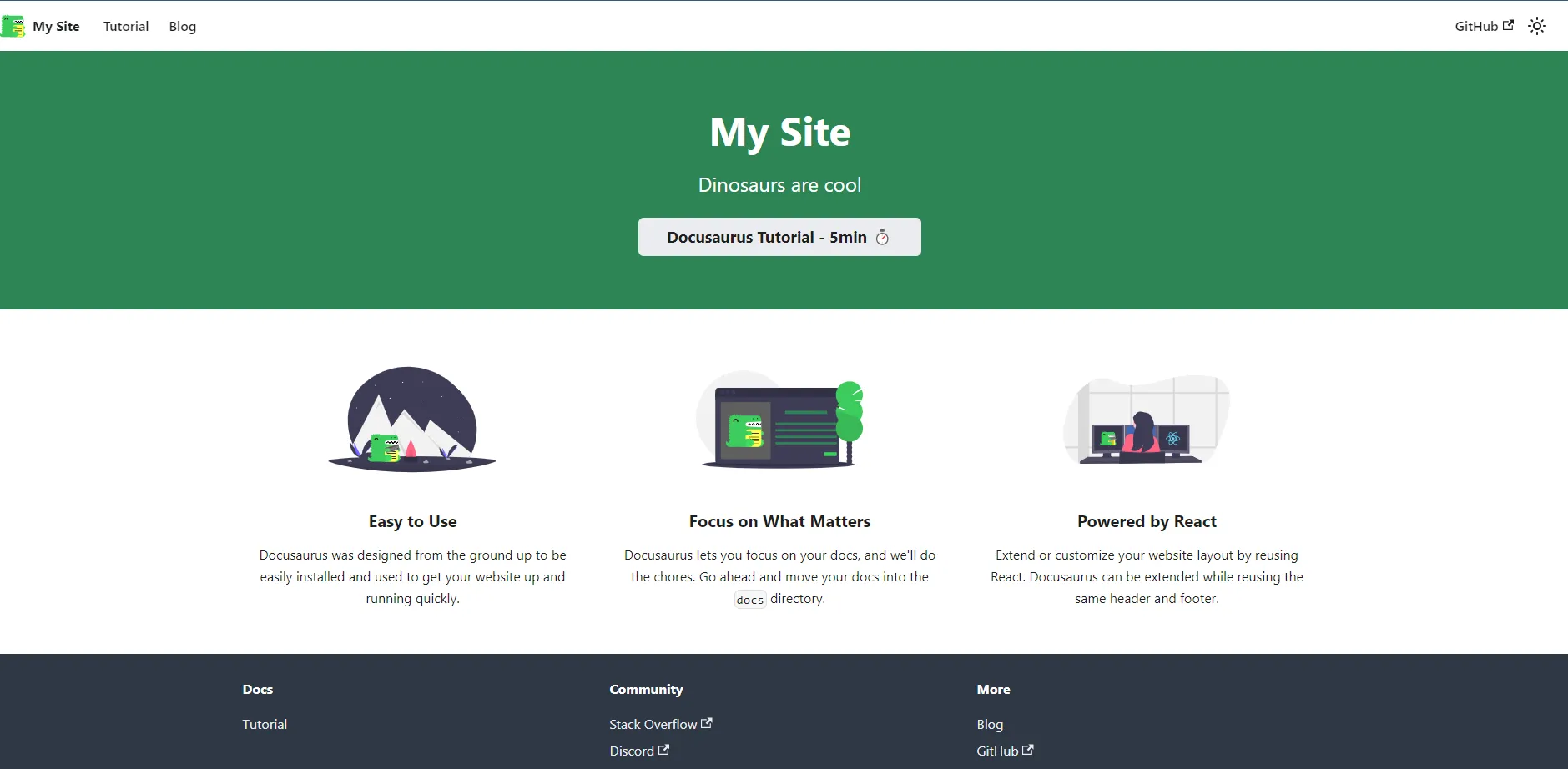
When the first deployment finishes, click Visit site on the site's Overview tab to open it.
Create a Disqus account
Disqus offers tools to increase engagement through social integration, moderation tools, and analytics. It supports online discussions via comments. Follow these steps to use Disqus:
- Create a Disqus account.
- Fill in the required information for the signup process.
- After signing up, select I want to install Disqus on my site.
- Register your site with Disqus. During registration, pick a short name and a category for your site. An organization automatically generates a list containing your new site and any additional sites you create in the future.
- Select a Disqus plan for your organization. Disqus offers various subscription plans, including Plus, Pro, and Business. For this demo, you can select the Basic plan, which includes core features such as the comments plug-in, advanced spam filtering, moderation tools, and basic analytics.
Integrate Disqus with your static site
The next step is integrating the Disqus code snippet into your static site generator.
-
After registering your site, click I don't see my platform listed, install manually with Universal Code.

Embedding the Disqus code manually with Universal Code. The displayed page contains a JavaScript code snippet in the section labeled Place the following code where you'd like Disqus to load. Since the static site is a React application, you must modify this code snippet to work with React.
-
Create a folder called Disqus inside the src/components folder.
-
Create an index.js file in that folder and add the following code. Make sure to replace
https://your_shortname_placeholder.disqus.com/embed.jswith the URL you received in the Universal Code:import React, { useEffect } from 'react'; const DisqusComments = () => { useEffect(() => { window.disqus_config = function () { this.page.url = PAGE_URL; // Replace PAGE_URL with your page's canonical URL variable this.page.identifier = PAGE_IDENTIFIER; // Replace PAGE_IDENTIFIER with your page's unique identifier variable }; // Load the Disqus script dynamically const script = document.createElement('script'); script.src = 'https://your_shortname_placeholder.disqus.com/embed.js'; script.setAttribute('data-timestamp', +new Date()); (document.head || document.body).appendChild(script); // Clean up Disqus when the component unmounts return () => { const disqusThread = document.getElementById('disqus_thread'); if (disqusThread) { disqusThread.innerHTML = ''; // Clear the Disqus thread to avoid interference with other components } }; }, []); // Run this effect only once, when the component mounts return ( <div> <div id="disqus_thread"></div> <noscript> Please enable JavaScript to view the{' '} <a href="https://disqus.com/?ref_noscript">comments powered by Disqus.</a> </noscript> </div> ); }; export default DisqusComments;The
disqus_configfunction sets two values:this.page.url— This variable is set toPAGE_URL, which you should replace with the page's canonical URL. Disqus uses this URL to identify the specific page where the comments belong.this.page.identifier— This variable is set toPAGE_IDENTIFIER, which you should replace with a unique identifier for the page. This identifier allows Disqus to differentiate between pages with the same URL and associate comments with the correct page.
-
To add the comments section to the landing page, import the component in index.js within the src/pages directory:
import DisqusComments from '@site/src/components/Disqus'; -
Then, use
DisqusCommentsin the page's markup:export default function Home() { const {siteConfig} = useDocusaurusContext(); return ( <Layout title={`Hello from ${siteConfig.title}`} description="Description will go into a meta tag in <head />"> <HomepageHeader /> <main> <HomepageFeatures /> <DisqusComments /> </main> </Layout> ); }
Commit these changes to your repository to update your site on Sevalla:
git add .
git commit -m "Adding Disqus Comments"
git push -u origin main
If you left Auto-deploy on when creating your static site, pushing new changes automatically starts a deployment on Sevalla. Otherwise, deploy the changes manually from the site's Deployments tab.
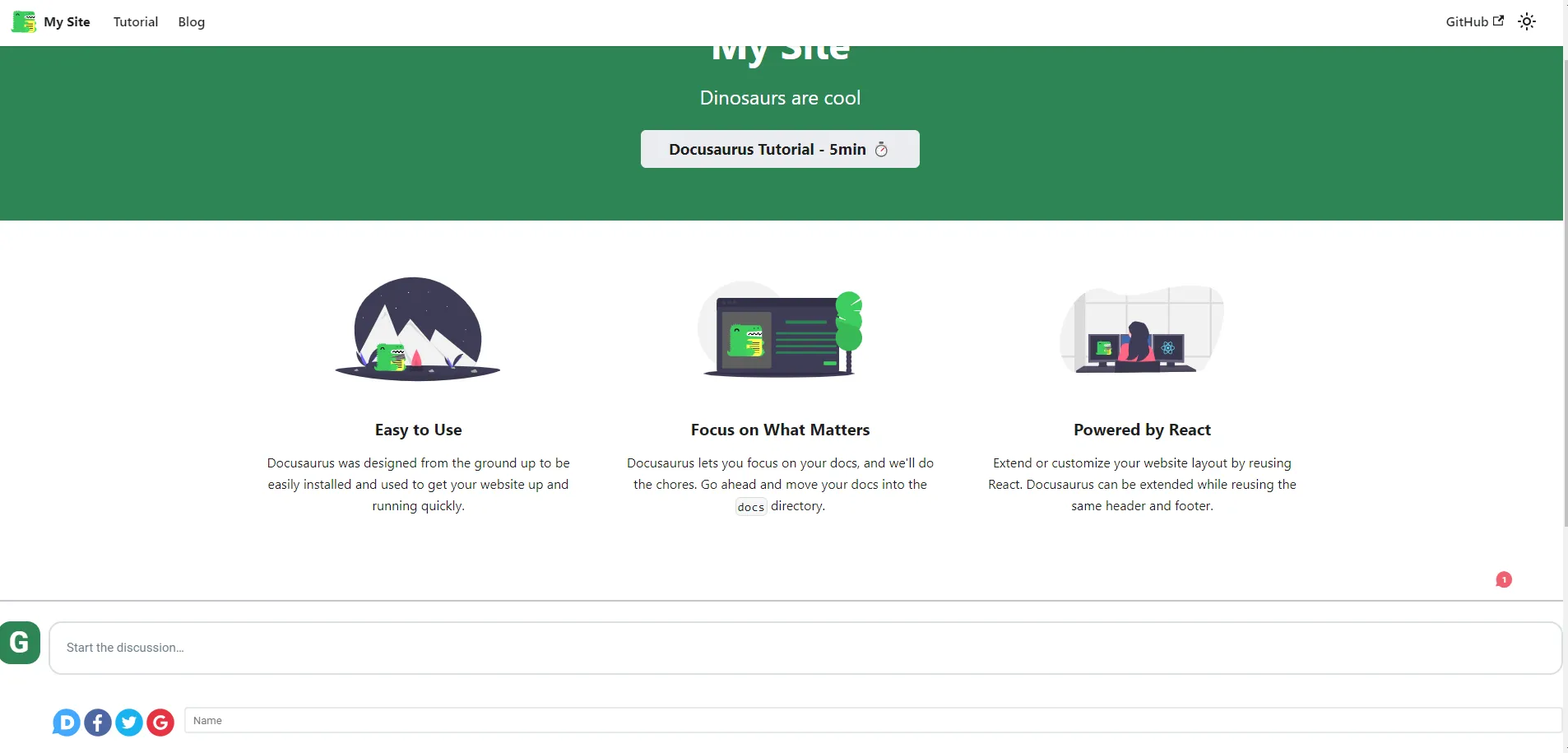
Congratulations — you've created a static site on Sevalla and integrated a comments section using Disqus!
You may want to modify the DisqusComments component to ensure the comment section loads as intended.
How to customize the comments section
You can customize the comments section on your static site by modifying its appearance, implementing reactions, performing comment moderation, and more. Some customization options available on Disqus include the following.
Customize the theme
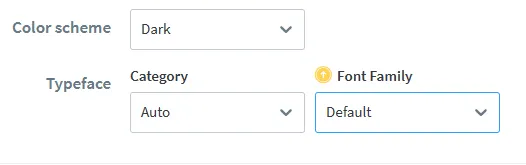
To customize the theme of your Disqus comments, navigate to the Disqus dashboard, click General from the Settings tab, and select suitable options from the Color Scheme and Typeface dropdowns.
Enable reactions on your site
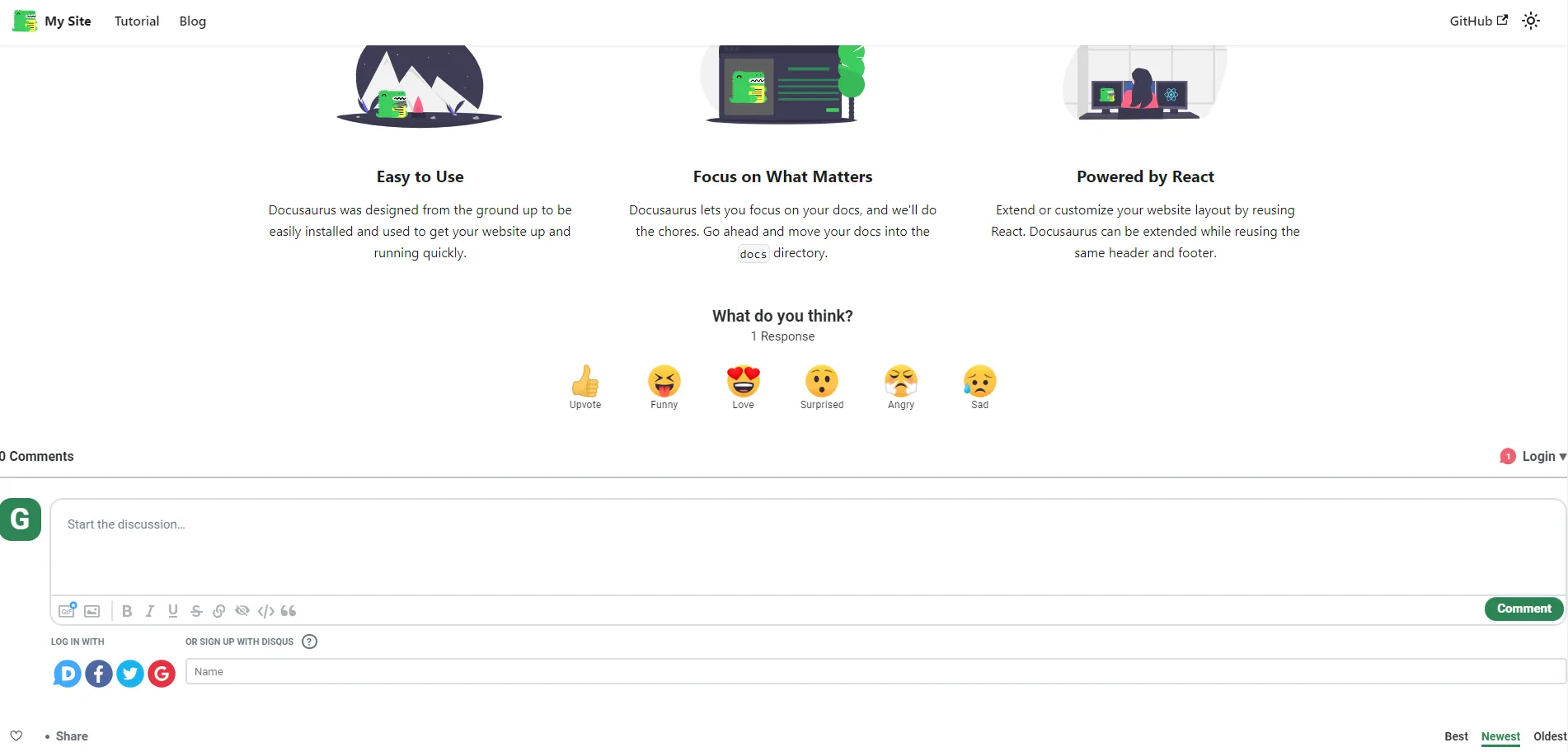
You can increase your audience engagement by enabling Reactions on your site. Customize these Reactions according to your preferences.
To enable this feature, navigate to the Settings tab on the Disqus dashboard. Select Reactions. Then, click Enable Reactions on your site.
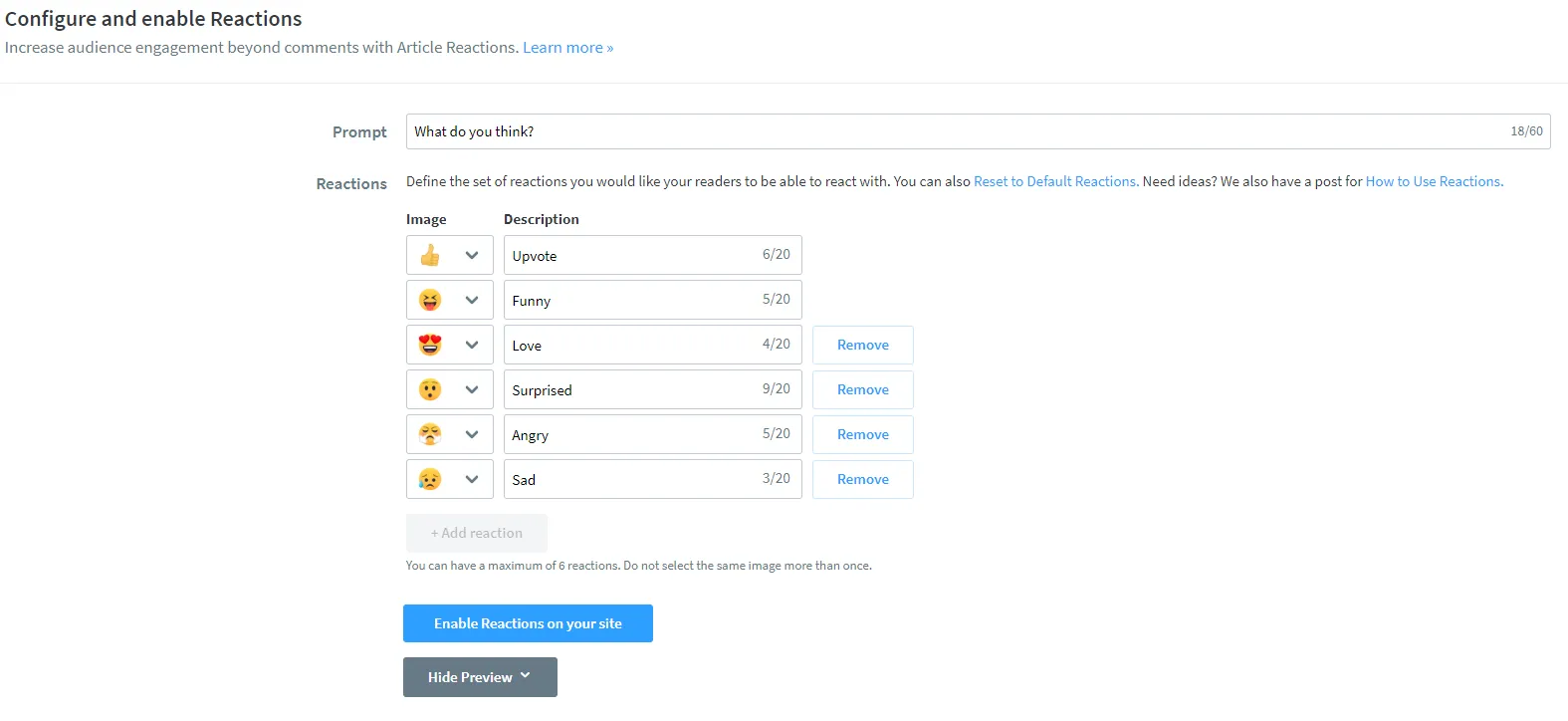
Refresh your site. The option for reactions appears.
Comment avatars
You can upload a default commenter avatar for users, making them feel like a part of the community.
To enable this feature, navigate to the Disqus dashboard, click General from the Settings tab, and upload an image from Default Commenter Avatar.

Sort comments
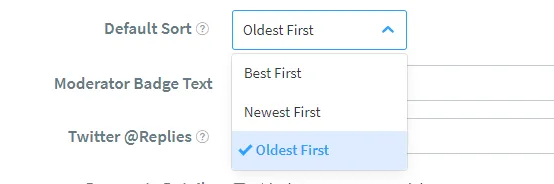
Add customization to let users sort comments based on Oldest First, Newest First, or Best First. Click Community in the Settings tab of the Disqus dashboard and select the order from the Default Sort dropdown.
How to moderate comments
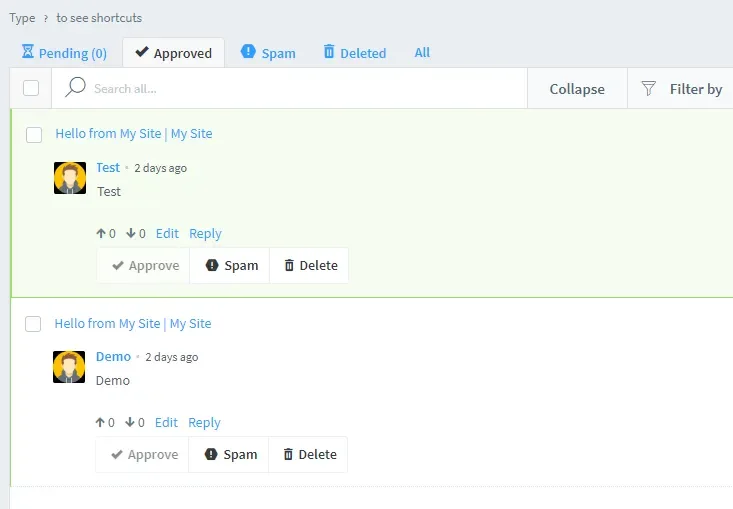
To moderate comments on Disqus, use the Disqus moderation panel on the top navigation bar in your Disqus dashboard. This tool provides a quick view of your forum's comments and their status (approved, pending, and so on).
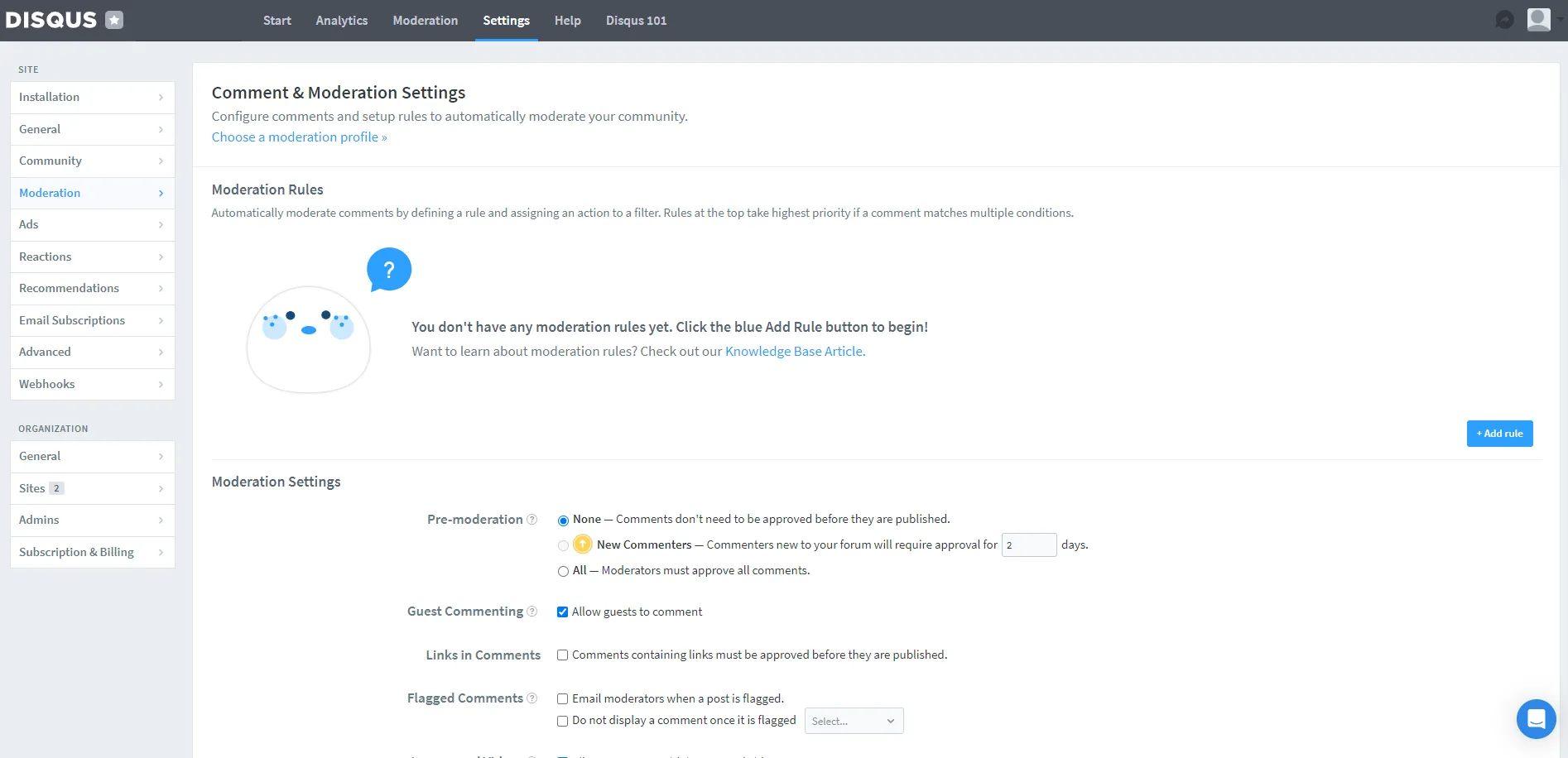
You can also configure moderation rules from the Moderation menu, which is available on the left navigation pane under the Settings tab of the Disqus dashboard.
Next, check out their documentation for key steps and features to help you manage and moderate comments on Disqus.
Allow visitors to comment
To allow guest users to comment on your site, check the Guest Commenting checkbox, then click Save. These comments remain pending until a moderator approves them from the Disqus moderation dashboard.

Approve, delete, and mark comments as spam
The moderation panel lets you perform bulk actions (approve, delete, and mark comments as spam) by checking multiple comments. Alternatively, you can moderate them individually in the expanded comment view.
Once you enable this setting, a moderator must approve comments before they're displayed.
Summary
This tutorial taught you how to add a comment section to your static site. Aside from Docusaurus, you can implement Disqus into any other SSG like VuePress, Gatsby, and more.
Sevalla's Static Site Hosting lets you deploy your pre-built non-dynamic files easily. To explore the benefits of hosting your static site on Sevalla and integrating features like a comment section, check out Sevalla's Static Site Hosting.