How to build a static site with SvelteKit
Static sites have become increasingly popular due to their speed, security, and simplicity. When it comes to building static sites, several tools and frameworks are available, but one that's gaining rapid traction is SvelteKit.
This guide takes you through the journey of creating a static site with SvelteKit.
What is SvelteKit?
SvelteKit is a robust web framework designed for crafting user interfaces, including static sites. It's known for its performance, simplicity, and the ability to create components with a declarative approach.
SvelteKit extends the capabilities of the Svelte framework by adding routing, server-side rendering, and more.
Getting started with SvelteKit
To follow along with this guide, we assume you have:
- Fundamental understanding of HTML, CSS, and JavaScript.
- Basic knowledge of Svelte.
- Node.js and npm installed on your computer.
To build your new SvelteKit application, follow the steps below.
- Scaffold a new project by executing:
npx sv create my-appThis command scaffolds a new project in the my-app directory, asking to configure some basic tooling, such as TypeScript. Ensure you choose the SvelteKit minimal template and change my-app to the preferred name for your project.
- Navigate into the project directory and install its dependencies:
cd my-app
npm install- Execute
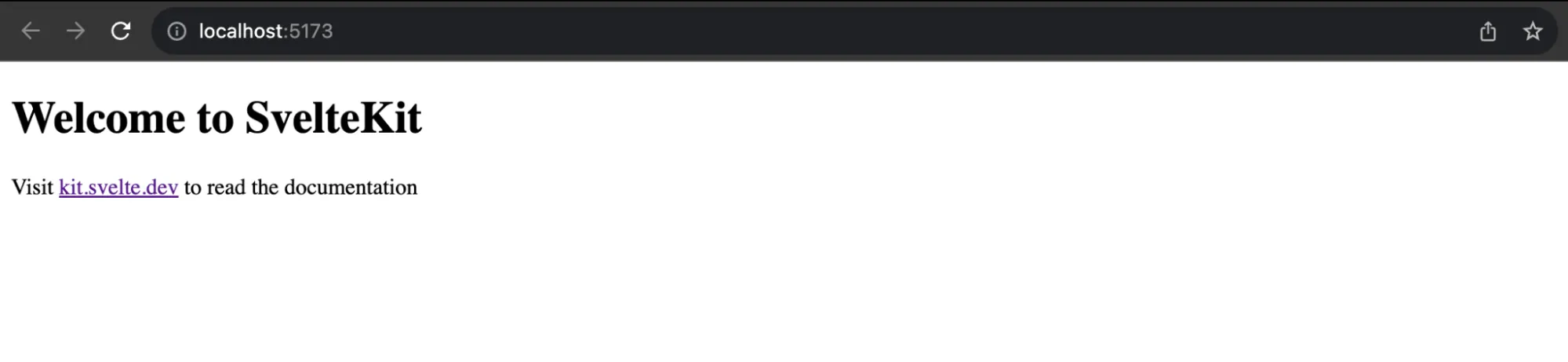
npm run devto start the local development server onlocalhost:5173.
Understanding SvelteKit file structure
When you open your project in a code editor, you will see the following structure. Understanding this structure is crucial as it helps you organize your code effectively.
/
|-- /src
    |-- /lib
    |-- /routes
        |-- +page.svelte
    |-- app.html
|-- /static
|-- vite.config.js- /src: This is the heart of your project and contains various subdirectories and files:
- /lib: This directory houses custom libraries, utilities, or modules. It's a good place to store reusable code that may be used throughout your application.
- /routes: The routes directory is crucial for defining the different pages or views in your application. Each page is represented by a .svelte file, such as +page.svelte. These .svelte files contain the components, logic, and styles specific to that page.
- app.html: This file serves as the entry point of your application. It's where the main structure of your web page is defined.
- /static: This directory is used for storing static assets, such as images, fonts, or any files that don't need processing by your application. These assets can be directly referenced in your HTML and Svelte components.
- vite.config.js: This configuration file sets up Vite and the SvelteKit plugin, including the adapter that decides how your site is built and deployed.
Routing in SvelteKit
One of the standout features of SvelteKit is its routing system. It follows a file-system-based approach, where URL paths are defined by files and folders in the src/routes directory, making it intuitive and straightforward to manage.
In SvelteKit, every file corresponding to a route must be named +page.svelte. For example, the index file for your SvelteKit site is located in the routes folder and named +page.svelte.
Add the following code to this file to create the home page:
<!-- src/routes/+page.svelte -->
<div class="home_hero">
    <h1>Enjoy Static Site Hosting With Sevalla.</h1>
    <p>Fast, Secure, Reliable Hosting Solution.</p>
    <a href="https://sevalla.com/static-site-hosting/">
        <div class="btn">Read more</div>
    </a>
</div>

<style>
    .home_hero {
        display: flex;
        justify-content: center;
        align-items: center;
        flex-direction: column;
        text-align: center;
    }
    .home_hero h1 {
        font-size: 60px;
        width: 70%;
    }
    .home_hero p {
        color: #6e7076;
        font-size: 20px;
    }
    .btn {
        background-color: #5333ed;
        padding: 20px 30px;
        margin-top: 40px;
        border-radius: 5px;
        color: #fff;
    }
    @media (max-width: 700px) {
        .home_hero h1 {
            font-size: 40px;
        }
        .home_hero p {
            font-size: 16px;
        }
    }
</style>
To create a nested route in SvelteKit, for example, an about page accessible at localhost:5173/about, you need to create a folder within the routes folder with a name that represents the URL path. Within that folder, create a +page.svelte file to be rendered for the route.
Add the following code to routes/about/+page.svelte:
<div class="about_cont">
    <h2>About</h2>
    <div class="about_info">
        <div class="about_text">
            <p>
                Sevalla allows you to{' '}
                <a href="https://sevalla.com/static-site-hosting/">
                    host up to 100 static websites
                </a>{' '}
                for free. This can be done by pushing your code to your preferred Git provider
                (Bitbucket, GitHub, or GitLab) and then deploying it to Sevalla.
            </p>
            <p>
                As an alternative to Static Site Hosting, you can opt for deploying your
                static site with Sevalla's{' '}
                <a href="https://sevalla.com/application-hosting/">
                    Application Hosting
                </a>
                , which provides greater hosting flexibility, a wider range of benefits,
                and access to more robust features. For example, scalability, customized
                deployment using a Dockerfile, and comprehensive analytics encompassing real-time
                and historical data.
            </p>
        </div>
    </div>
</div>

<style>
    .about_cont h2 {
        font-size: 40px;
        margin-bottom: 20px;
    }
    .about_info {
        display: flex;
        width: 100%;
        justify-content: space-between;
        gap: 20px;
    }
    @media (max-width: 700px) {
        .about_info {
            flex-direction: column;
        }
    }
    .about_text {
        flex-basis: 50%;
    }
    .about_text p {
        margin-bottom: 20px;
        font-size: 18px;
    }
    .about_img {
        flex-basis: 50%;
        width: 200px;
        border-radius: 10px;
    }
    @media (max-width: 700px) {
        .about_info {
            flex-direction: column;
        }
        .about_img {
            width: 100%;
        }
    }
</style>
Any style added to your Svelte component is scoped and won't affect other components.
It's essential to understand that SvelteKit handles navigation between pages using standard <a> elements, making the navigation process intuitive. There's no need to import additional components like <Link> as required in React. In the upcoming section, let's create a Navigation component to be added to each page.
For the current project, the route structure looks like this:
|-- /src
    |-- /routes
        |-- /about
            |-- +page.svelte
        |-- +page.svelte
Using components in SvelteKit
To make your code more modular, you can create components and import them into your pages. For example, you can create a Navbar.svelte component in the routes folder:
<!-- src/routes/Navbar.svelte -->
<nav>
    <a href="/">
        <img src="/logo.png" alt="" class="logo-img" />
    </a>
    <div class="nav-links">
        <a href="/">Home</a>
        <a href="/about">About</a>
        <a href="/posts">Posts</a>
    </div>
</nav>
Then, import it into the +page.svelte homepage like this:
<!-- src/routes/+page.svelte -->
<script>
    import Navbar from './Navbar.svelte'
</script>

<Navbar />
<div class="home_hero">
    <h1>Enjoy Static Site Hosting With Sevalla.</h1>
    <p>Fast, Secure, Reliable Hosting Solution.</p>
    <a href="https://sevalla.com/static-site-hosting/">
        <div class="btn">Read more</div>
    </a>
</div>

<style>
      /* CSS styles */
</style>
For global components like Navbar and Footer, which are used across multiple files, create them in the src/lib folder to avoid long import paths. When you create components or modules within the lib folder, you can conveniently import them into any component using the #lib import alias:
<script>
    import Navbar from '#lib/Navbar.svelte'
</script>
To use standalone components, for example, suppose you need a component only for the About page, create it within the routes/about route, and then import it into the page.
For this project, you can also create a Footer component in the lib folder and add this code:
<div class="footer">
    <p>
        Hosted with ❤️ by Sevalla.
    </p>
</div>
Then, import it into all pages.
Using layout in SvelteKit
To avoid importing components into many pages, SvelteKit allows you to define layouts for your pages using +layout.svelte files.
Creating a layout that applies to every page is straightforward. Create a file named src/routes/+layout.svelte and customize it with the desired markup, styles, and behavior. The critical requirement is to render the page content with {@render children()}, where children comes from the layout's props.
For example, you can integrate the Navbar and Footer components within this layout:
<script>
    import Navbar from '#lib/Navbar.svelte';
    import Footer from '#lib/Footer.svelte';

    let { children } = $props();
</script>

<div class="layout">
    <Navbar />
    {@render children()}
    <Footer />
</div>
The {@render children()} tag inserts the content for each page into the layout.
Layouts can also be nested for specific pages. For example, if you have a /dashboard page with nested pages like /profile and /settings, you can create a special layout:
|-- /dashboard
    |-- /profile
        |-- +page.svelte
    |-- /settings
        |-- +page.svelte
    |-- +layout.svelte
Programmatic navigation in SvelteKit
SvelteKit provides a goto function for programmatic navigation. For example, to navigate to the /dashboard page after a login action:
<script>
    import { goto } from '$app/navigation';

    async function login() {
        // Perform login action
        goto('/dashboard');
    }
</script>
Styling in SvelteKit
SvelteKit supports traditional CSS for styling your pages. Styles can be defined within your Svelte components using the <style> tag, or you can choose to link external stylesheets.
You might notice that the Navbar and Footer components lack specific styles. To address this, it's a good practice to apply global styling. This can be achieved by creating a CSS file within the src folder and importing it into your root layout file.
For better organization, create a styles folder within the src directory. This folder can house all your styles. As part of this project, create a global.css file in the styles folder and add the following code:
@import url('https://fonts.googleapis.com/css2?family=Poppins:wght@300;400;500&display=swap');
* {
    margin: 0;
    padding: 0;
    box-sizing: border-box;
}
body {
    background-color: #ddd;
    font-family: 'Poppins',
        sans-serif;
    width: 1200px;
    margin: 0 auto;
}
a {
    text-decoration: none;
}
img {
    width: 100%;
}
nav {
    display: flex;
    justify-content: space-between;
    height: 200px;
    align-items: center;
}
nav .logo-img {
    width: 100px;
}
nav .nav-links a {
    padding: 0 20px;
    font-size: 18px;
}
@media (max-width:700px) {
    body {
        width: 100%;
        padding: 0 20px;
    }
    nav .nav-links a {
        padding: 0 18px;
    }
}
.footer {
    width: 100%;
    text-align: center;
    margin: 100px 0 20px;
}
You can then import the CSS file into your layout file so it's global and works for all files:
<script>
    import Navbar from '#lib/Navbar.svelte';
    import Footer from '#lib/Footer.svelte';
    import '../styles/global.css';

    let { children } = $props();
</script>
Loading data with SvelteKit
When working with SvelteKit, you often need to load data into your layouts, pages, and components. This data can come from external APIs, databases, or your local server. To manage this, you can utilize a +page.js file for pages and +layout.js for layouts.
In your SvelteKit project, a +page.svelte file can have a sibling +page.js that exports a load function. The return value of this function is made available to the page through the data prop. Let's consider an example: suppose you want to create a route for fetching a list of posts from the JSON Placeholder API.
To load data from the API, create a +page.js file within the posts folder. This file exports a load function.
export const load = async () => {
    const title = "Hello World";
    return {
        title,
    };
};
The load function is expected to return an object, which is provided as props to the +page.svelte file. The title value can then be accessed with the data prop:
<script>
    let { data } = $props();
</script>

<div class="blog_cont">
    <h2>{data.title}</h2>
</div>
Now, let's move on to interacting with the JSON Placeholder posts API. To achieve this, you can use the JavaScript Fetch API, but SvelteKit offers its own fetch method that you can use to retrieve data from your API endpoints before rendering a page:
export const load = async (loadEvent) => {
    const { fetch } = loadEvent;
    const response = await fetch(
        'https://jsonplaceholder.typicode.com/posts?_limit=10'
    );
    const posts = await response.json();
    return {
        posts,
    };
};
In the code above, we extract the fetch method from loadEvent and make the API request. The response is then sent as props to the Posts page, looping through and displaying all posts:
<script>
    let { data } = $props();
</script>

<div class="blog_cont">
    <h2>Posts</h2>
    <div class="blog_grid">
        {#each data.posts as post}
            <a href={`/posts/${post.id}`} class="blog_card">
                <h3>{post.title}</h3>
                <p>
                    {post.body}
                </p>
            </a>
        {/each}
    </div>
</div>

<style>
    .blog_cont h2 {
        font-size: 40px;
        margin-bottom: 20px;
    }
    .blog_grid {
        display: grid;
        grid-template-columns: 1fr 1fr 1fr;
        gap: 20px;
    }
    @media (max-width: 700px) {
        .blog_grid {
            grid-template-columns: 1fr;
        }
    }
    .blog_card {
        background-color: #bfbfbf;
        padding: 20px;
        border-radius: 5px;
        color: #000;
        transition: all 0.5s ease-in-out;
    }
    .blog_card:hover {
        background-color: #5333ed;
        color: #fff;
    }
    .blog_card h3 {
        margin-bottom: 15px;
    }
    .blog_card p {
        margin-bottom: 15px;
    }
</style>
This is what the current file tree looks like:
|-- /src
    |-- /lib
        |-- Footer.svelte
        |-- Navbar.svelte
    |-- /routes
        |-- /about
            |-- +page.svelte
        |-- /posts
            |-- +page.js
            |-- +page.svelte
        |-- +page.svelte
        |-- +layout.svelte
    |-- /styles
        |-- global.css
Dynamic routing with SvelteKit
You now have 10 posts displayed on your posts page; if you want to create an individual page for each post, the best way to do it is to create a dynamic route.
To achieve this, you need to receive the slug value from the route and use it as a parameter to query for the post. In SvelteKit, you can do this by creating a square bracket folder with the parameter name. Here's how you can set up individual post pages:
- Create a [postid] folder within the posts folder. The [postid] represents the dynamic parameter that can hold values like post IDs or slugs.
- In the [postid] folder, create two files:
- +page.svelte: This file will define the layout and structure of your individual post pages.
- +page.js: This JavaScript file will handle the data fetching and logic specific to individual posts.
In the +page.js file, retrieve the postid parameter from the route and use it to query the specific post:
export const load = async (loadEvent) => {
    const { fetch, params } = loadEvent;
    const { postid } = params;
    const response = await fetch(
        `https://jsonplaceholder.typicode.com/posts/${postid}`
    );
    const post = await response.json();
    return {
        post,
    };
};
You can then access the data as a prop in the +page.svelte file:
<script>
    let { data } = $props();
</script>

<div>
    <div class="blog_content">
        <h3>{data.post.title}</h3>
        <p>{data.post.body}</p>
    </div>
</div>

<style>
    .blog_content h3 {
        font-size: 40px;
        margin-bottom: 20px;
        text-align: center;
    }
</style>
Building your site as static files
By default, a new SvelteKit project uses adapter-auto, which builds for a server environment. To output plain static files instead, install the static adapter:
npm install -D @sveltejs/adapter-staticThen, in vite.config.js, import it in place of adapter-auto:
import adapter from '@sveltejs/adapter-static';Finally, tell SvelteKit to prerender every page by creating a src/routes/+layout.js file:
export const prerender = true;Now npm run build writes your static site to the build folder, including a page for every post that the posts page links to.
You can check out the full source code for this SvelteKit project on GitHub. You can also check out the official SvelteKit documentation for more information.
You can easily deploy your SvelteKit site to Sevalla. Check the Sevalla documentation for a step-by-step guide.
Summary
This guide has explained the process of creating a static site with SvelteKit. Building static sites with SvelteKit offers the perfect blend of performance and simplicity, ensuring your web projects shine on the internet.